







How-To & Tech Tips: Practical Guide to Setting Up and Using Your Technology
Technology is designed to make everyday tasks easier, but getting the most from your equipment often requires the right setup. From connecting a camera and microphone to organizing a gaming desk or choosing the correct cable, small details can make a significant difference.
OnlineFotoCrown’s How-To & Tech Tips guides are designed to help photographers, videographers, content creators, gamers and everyday technology users understand their equipment and build more practical setups.
Whether you are setting up new equipment or troubleshooting an existing system, the right information can help you avoid common mistakes and get more from your technology.
Start by Understanding Your Equipment
Before connecting or configuring a new device, take some time to understand its main features and available connections.
Check:
- Available ports
- Power requirements
- Compatible accessories
- Supported connections
- Included equipment
- User instructions
This is particularly important when working with cameras, microphones, monitors, audio equipment and other products that may require additional accessories.
Understanding your equipment before connecting everything can help prevent compatibility problems.
How to Set Up a Camera
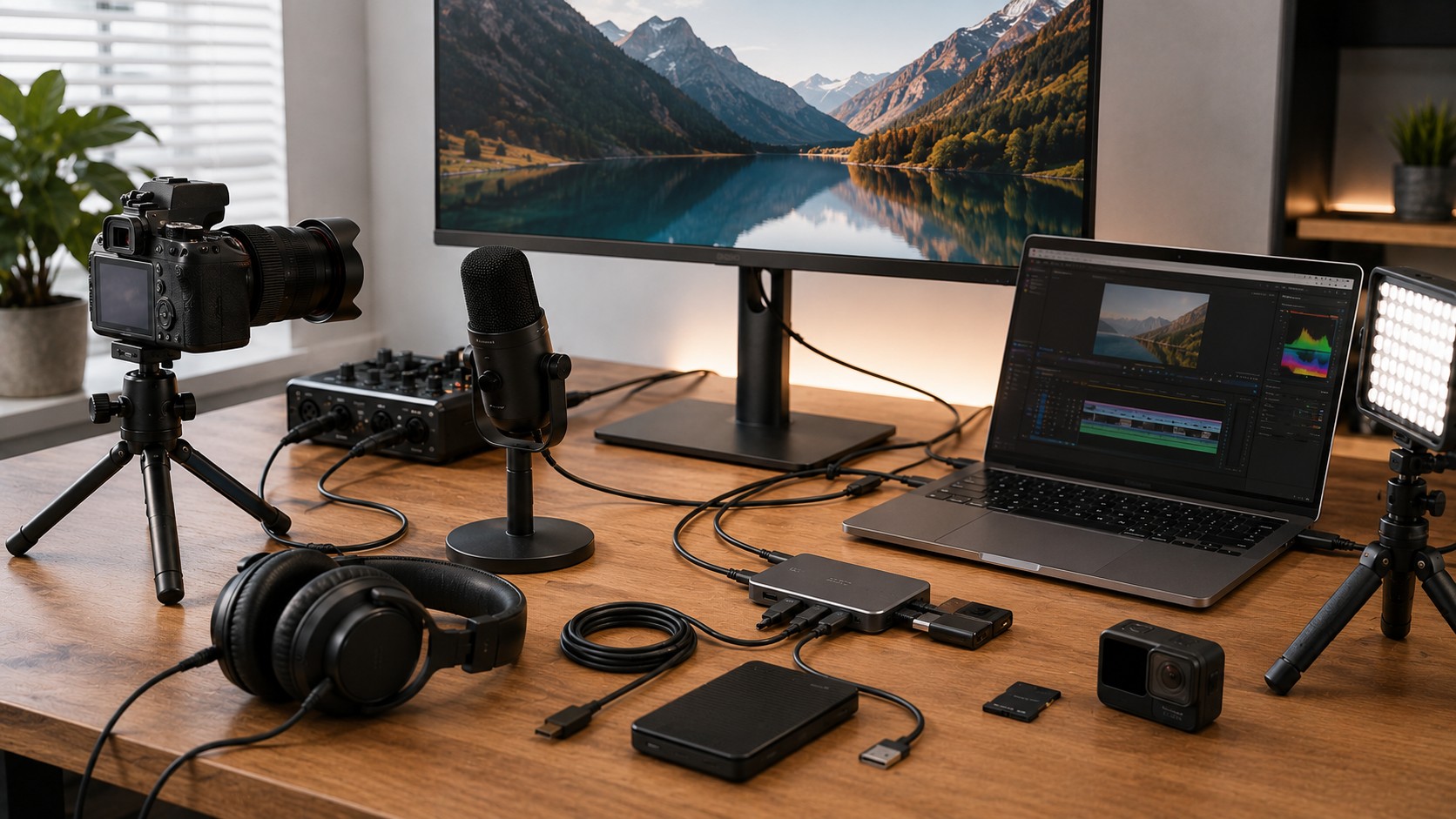
A basic camera setup starts with preparing the camera, lens and storage.
Before recording or taking photographs:
- Check the battery.
- Install compatible storage.
- Attach the appropriate lens if required.
- Configure basic image or video settings.
- Check focus.
- Take a test photograph or recording.
Depending on your workflow, additional equipment such as lighting, microphones, tripods and other accessories may also be required.
OnlineFotoCrown provides a range of camera accessories that can complement different photography and video setups.
How to Improve Video Lighting
Good lighting can make a significant difference to photography and video quality.
Start by considering the position of your subject and the available light.
Avoid placing the main light source directly behind the subject unless you specifically want a silhouette effect.
For indoor video, experiment with the position and intensity of your lighting to achieve a more consistent appearance.
Lighting accessories can be useful for:
- YouTube videos
- Interviews
- Product photography
- Streaming
- Tutorials
- Portrait photography
You can explore lighting accessories for compatible photography and video applications.
How to Get Better Audio in Videos
Good audio is essential for content creation.
If your recordings sound unclear, first check the microphone position and recording environment.
Try to:
- Keep the microphone at an appropriate distance.
- Reduce unnecessary background noise.
- Monitor audio while recording.
- Avoid excessive input levels.
- Test the recording before starting.
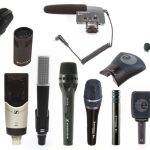
OnlineFotoCrown offers professional microphones for different recording applications.
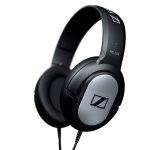
For monitoring, headphones can help you identify unwanted noise and other recording problems.
How to Monitor Audio While Recording
Listening to audio while recording can help you detect problems before completing an entire production.
Connect compatible headphones to your recording equipment and check the audio before beginning.
Listen for:
- Background noise
- Distortion
- Low volume
- Unwanted
- interference
- Inconsistent sound
For more advanced workflows, dedicated sound recorders can provide additional recording options.
How to Connect Technology Devices Correctly
One of the most common technology problems is using the wrong cable or connector.
Before connecting two devices, identify the ports on both sides.
For example, check whether your equipment uses:
- HDMI
- USB
- USB-C
- Audio connectors
- Network connections
- Other compatible interfaces
Do not assume that cables with similar-looking connectors provide identical functionality.
OnlineFotoCrown’s Cables & Connectors category can help users find connectivity accessories for different setups.
Always check device and cable specifications before purchasing.
How to Organize a Gaming Setup
Large photo and video files can quickly consume storage space.
Create a simple workflow for managing your files.
For example:
Record → Transfer → Organize → Edit → Backup
Avoid keeping important projects in only one location.
OnlineFotoCrown offers storage devices that can support different photography, video and technology workflows.
Organizing files into clearly named folders can also make it easier to find projects later.
How to Use Drone Accessories Safely
Drone accessories and replacement parts should always be selected according to the specific drone model.
Before installing an accessory:
- Confirm compatibility.
- Inspect the component.
- Follow the manufacturer’s instructions.
- Ensure everything is securely installed.
- Test the equipment appropriately before use.
OnlineFotoCrown provides professional drones and drone parts and accessories.
Always follow applicable local requirements and the manufacturer’s operating guidance when using drones.
Troubleshooting Common Technology Problems
When something does not work, avoid changing multiple settings at once.
Instead, troubleshoot systematically.
Start by checking:
- Is the device powered on?
- Is the cable connected correctly?
- Is the correct input selected?
- Is the device compatible?
- Are the relevant settings configured correctly?
- Does another compatible cable or device work?
This process can help identify whether the problem comes from the device, connection, accessory or configuration.
Final Thoughts
The right How-To & Tech Tips can make technology easier to use and troubleshoot.
Whether you are setting up a camera, improving audio, organizing a gaming desk, connecting devices or managing large media files, understanding the basics can help you avoid common problems.
The key is to start with your equipment, check compatibility and make changes systematically.
Explore OnlineFotoCrown for cameras, audio equipment, drones, gaming products, accessories and other technology. If you need help choosing compatible equipment, you can also contact OnlineFotoCrown.
Check the device’s ports, power requirements, compatibility information and included accessories before connecting or configuring it.
Use a suitable microphone, position it correctly, reduce background noise and monitor your recording with compatible headphones.
Check the ports on both devices and confirm that the cable supports the required connection and functionality.
Position your monitor and peripherals comfortably, organize cables and choose accessories that suit your available workspace.
Transfer files into organized folders and maintain backups using suitable storage rather than relying on a single copy.
Check power, connections, input settings, compatibility and cables systematically before changing more advanced settings or replacing equipment.